

Velvet2
Author: NoisyFlake
Version: 2.1.2
Description
A fully customizable notification experience for iOS 15 & 16
When the first version of Velvet was introduced, it changed the notification design of iOS significantly. So significantly, that even Apple implemented it in iOS 15. However, Apples implementation lacks one thing: customization!
A ton of customization options
Velvet 2 lets you colorize the following elements of a notification separately:
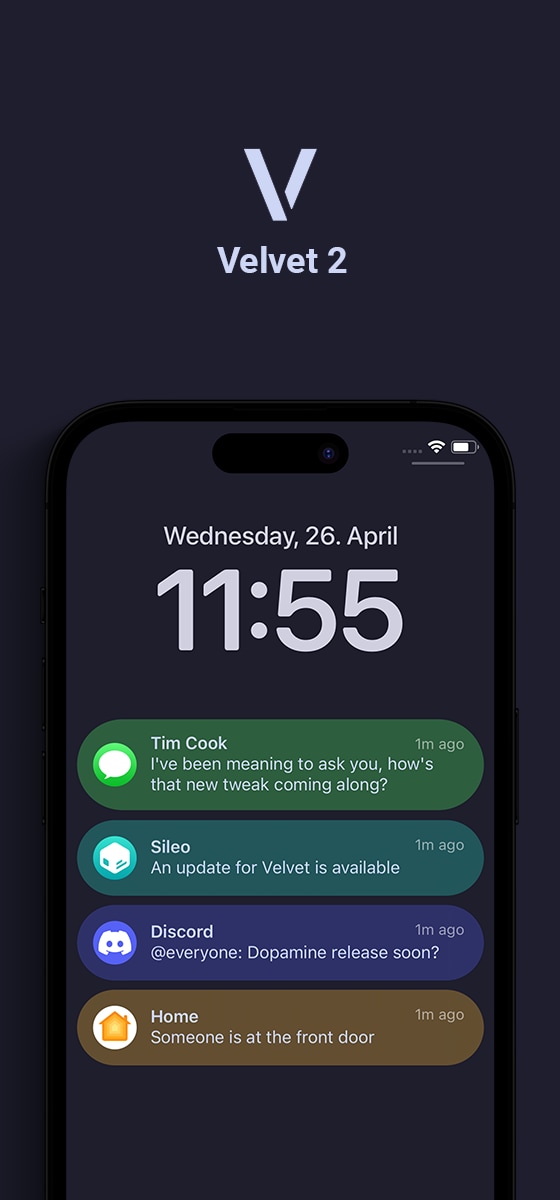
- Background
- Border
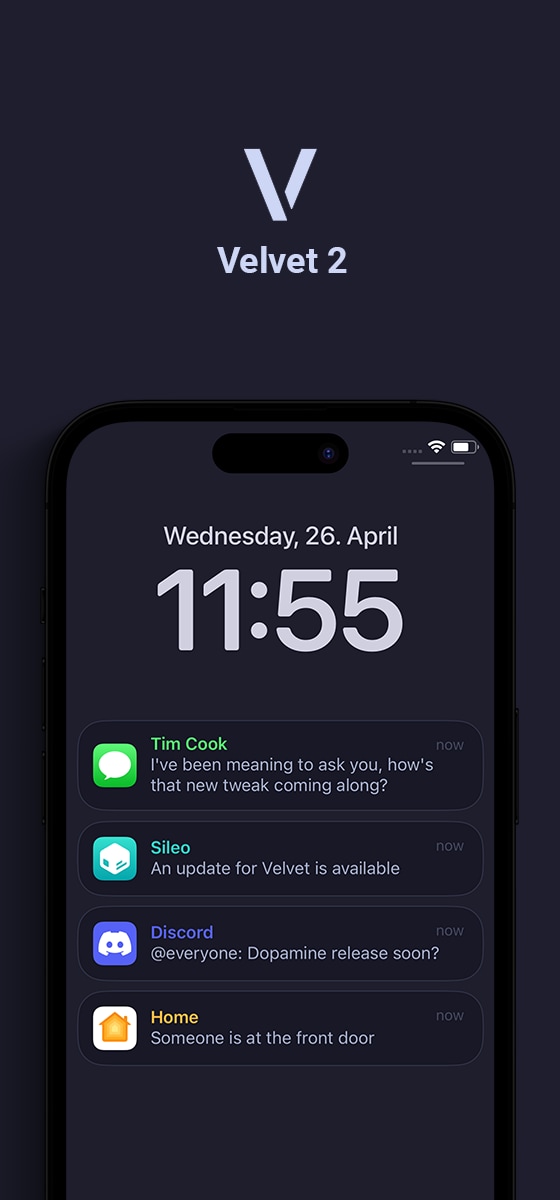
- Message title
- Message content
- Date
In addition to that, there are two extra elements that are not part of a standard notification that can be enabled:
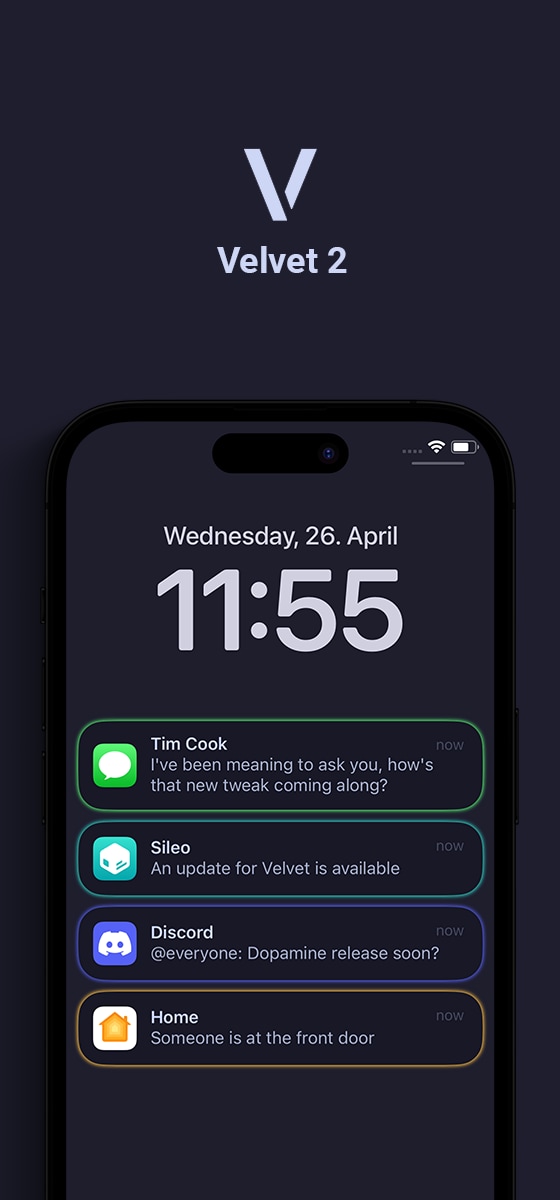
- Glow around the notification (like a border, but with a shine)
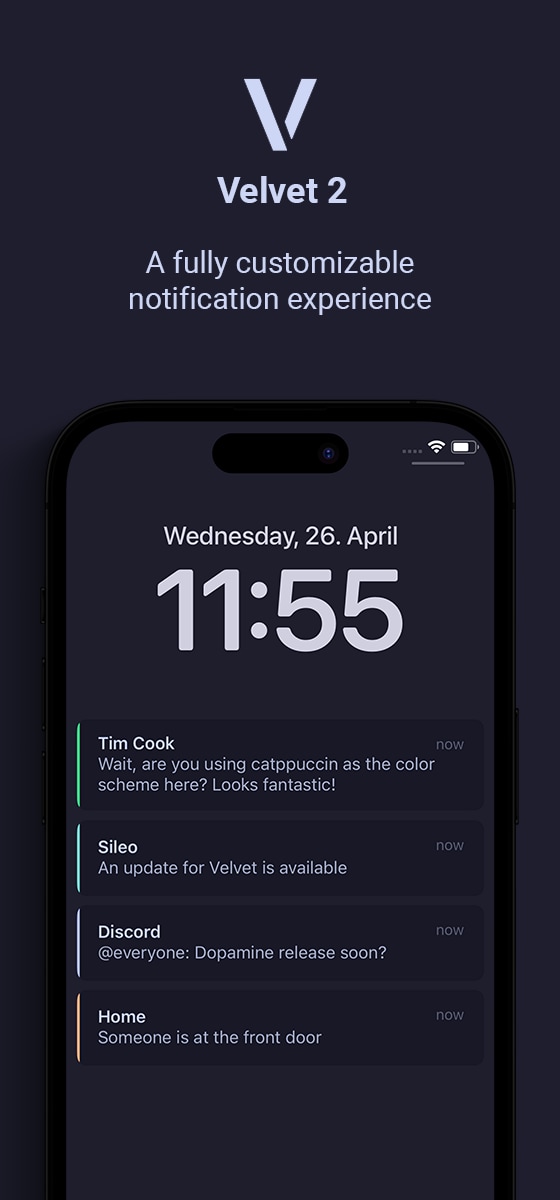
- Colored line(s) - horizontal or vertical - at various positions
Last but not least, you have some options to customize the overall appearance:
- Notification corner radius
- Hide App icons
- Round App Icons
- Don’t dim stacked notifications
- Force dark or light appearance
Three ways to select a color
Any time you can select a color for one of the mentioned elements, Velvet 2 offers you three ways:
- Icon Color (takes the dominant color from the App Icon)
- Static Color (select the color manually using the native iOS color picker)
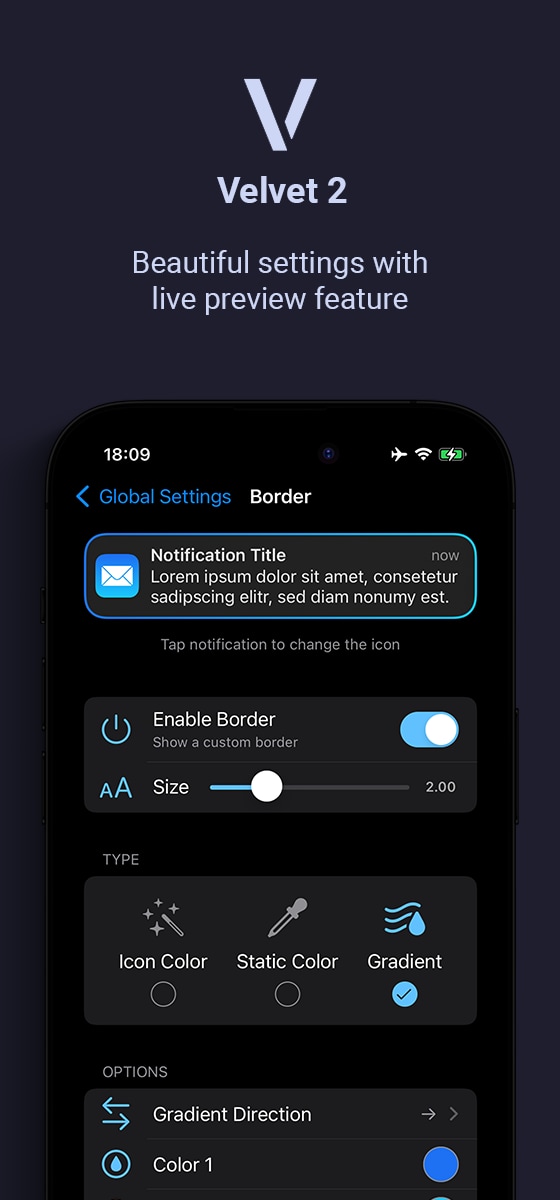
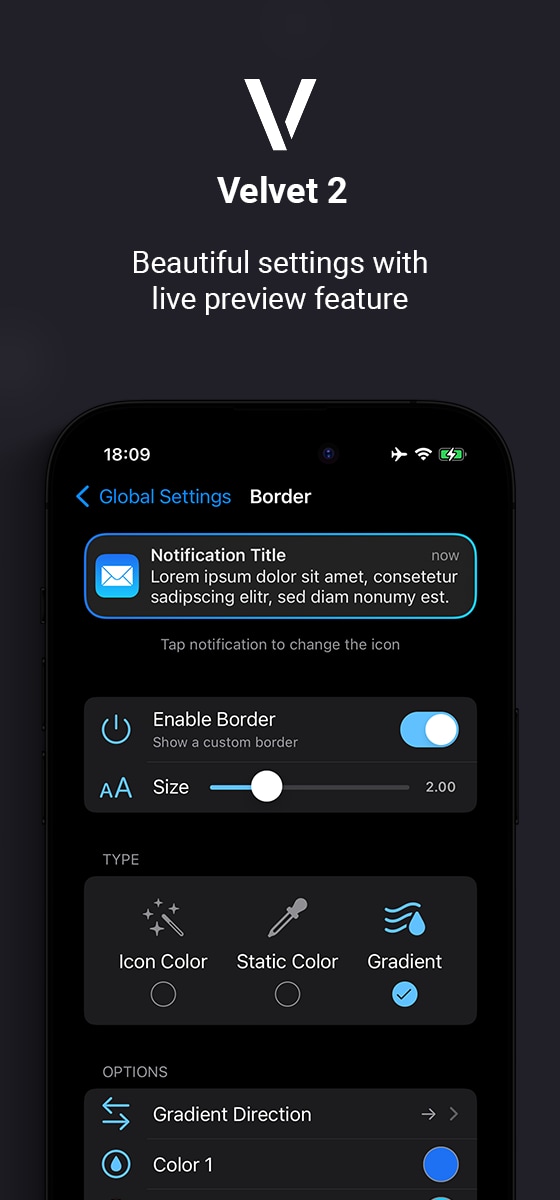
- Gradient (select two colors manually that present as a gradient)
When you select the gradient, you can also choose in which direction the gradient should go.
Live Preview, Live Action
Velvet 2 makes it easier than ever to understand what each option does. On each settings page, you’ll find a fake notification that displays your current settings in real time. This allows you to fine-tune everything to your liking, without having to constantly create new test notifications. If you want to see how it looks with a different icon, simply tap the notification and a new random icon will be displayed.
On top of that, if you’ve found a setup that works for you, you don’t have to do anything else. The customization to the real notifications are also applied in real-time, without any respring!
Separate settings per App
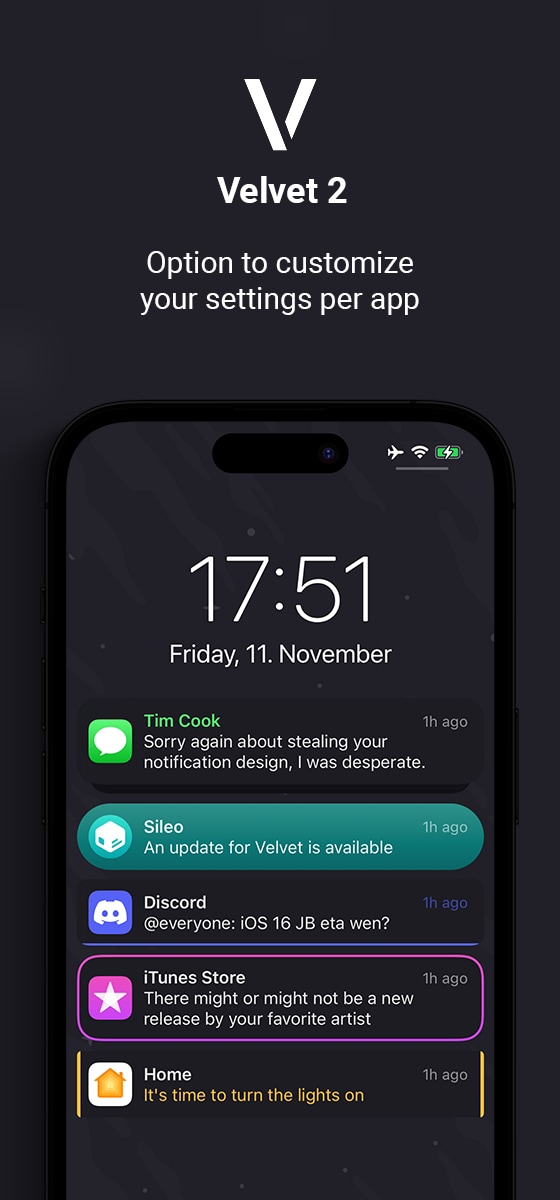
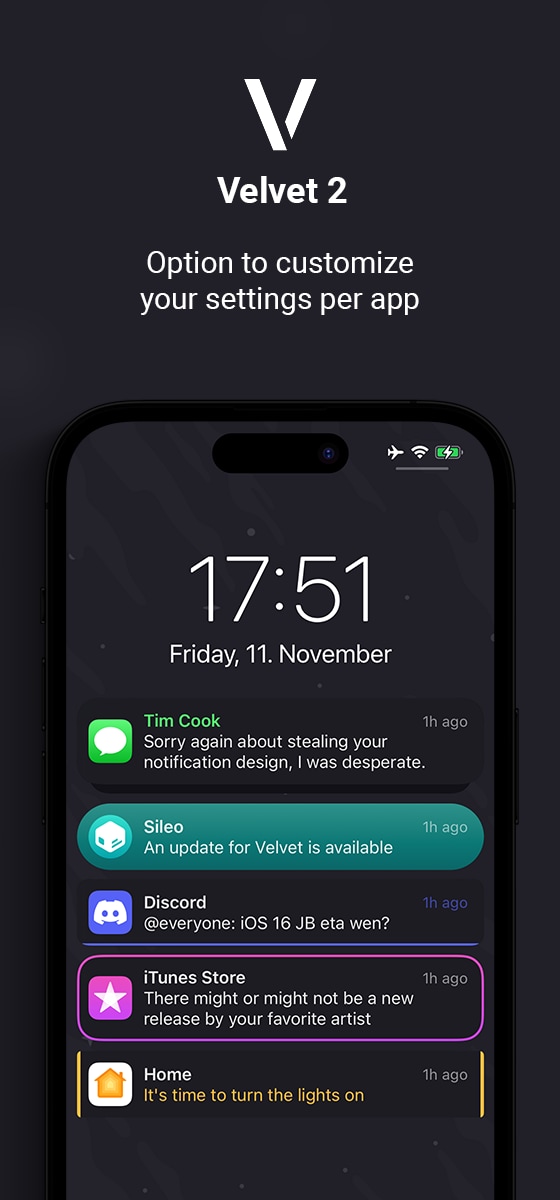
If you want to have one setup for all of your notifications, that’s easy to do: Simply go into the global settings, create your setup and you’re done. However, what if you want your notifications to look a bit different for specific apps? Velvet 2 has a new feature that allows you to customize all parts of your notifications individually per app.
Simply go into the “Per-App Settings”, select your desired app and customize it just like you did before with the global settings. This is helpful in plenty of cases:
Want to highlight specific notifications because they are important? Change the title color to a more prominent color.
Not satisfied with the dominant color the algorithm picked from the app icon? Simply overwrite it with a color you can pick yourself. And because the color picker has an actual “picker” integrated, you can easily pick the color from the app icon you want, without having to find out which hex codes the icon uses.
Note that the global settings are applied to all notifications, and the per-app settings are applied on top of it. That means you don’t have to configure your per-app settings completely from scratch. Simply change the one setting you want to change, and the rest will work as configured in the global settings.
Credits
- Simalary (Chris) for the notification stack color fix
Info
-
Downloads:
2064 -
Section:
Tweaks -
Firmware:
iOS 15.0 – 16.3.

- Fix notifications in a stack sometimes having the wrong color - thanks to Simalary (Chris)